Why That Free SVG Is Quietly Wrecking Your Projects (And Your Materials Budget)

Let's be real: the word "free" is basically irresistible in the crafting world. Free SVG files, free font bundles, free design sets — they're everywhere, and the promise of skipping a $3 or $5 purchase feels like smart budgeting. But after you've ruined your third sheet of premium vinyl on a cut that went sideways, or spent an hour untangling a file in Design Space that should have taken ten minutes, the math on "free" starts looking a lot different.
This isn't a rant against free resources. There are genuinely excellent free SVG files out there made by talented designers who share their work generously. The problem is that they share space with a massive pile of files that are poorly built, incorrectly sized, or just plain broken — and most makers have no idea how to tell the difference before it's too late.
What Actually Goes Wrong With Bad Design Files
When a design file is poorly constructed, the problems don't always show up immediately. Sometimes you don't realize anything is wrong until you're weeding vinyl at midnight and the whole thing tears apart in your hands. Here's what's actually happening under the hood:
Ungrouped or overlapping nodes. A lot of free SVGs are built with overlapping shapes that look fine visually but create double-cut lines when your Cricut follows the paths. Double cuts shred delicate materials, leave weird gaps in cardstock, and make weeding a nightmare. Design Space sometimes catches these, but not always.
Incorrect sizing and missing scale data. Files shared as screenshots converted to SVG (yes, this happens constantly) or improperly exported from design software often have no reliable size data. You open them in Design Space and they're either the size of a postage stamp or a billboard. Resizing manually sounds simple, but if the proportions aren't locked or the design has multiple layers, you're rebuilding it from scratch.
Raster images disguised as vector files. An SVG file can technically contain a raster (pixel-based) image inside it. When that happens, your Cricut isn't actually cutting a clean vector path — it's trying to interpret a blurry or low-resolution image, which produces jagged cuts, missed details, and frustrating inconsistencies. This is especially common with free files that were converted from PNG or JPEG rather than originally drawn as vectors.
Too many nodes. Legitimate vector designs use smooth, efficient paths. Poorly optimized files sometimes have thousands of unnecessary anchor points packed into a single shape — the digital equivalent of drawing a straight line with 500 tiny zigzags. Your machine has to process every single one of those points, which slows down the cut, strains the motor over time, and often produces a visibly rough edge on the finished piece.
The Real Dollar Cost of a Bad File
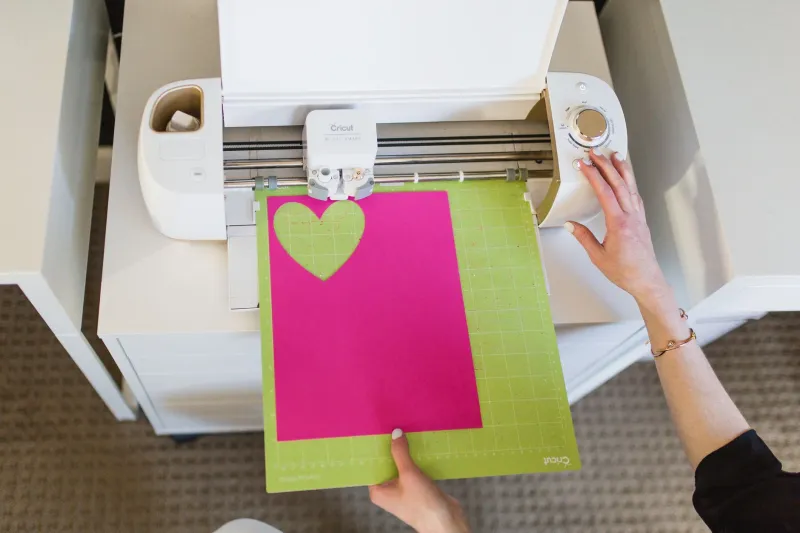
Here's where it gets genuinely painful. Say you download a free floral mandala SVG to cut on premium glitter cardstock — the kind that runs $1.50 to $2 a sheet. You load it up, run the cut, and the overlapping node issue means the machine cuts through the same lines twice. The paper tears. Sheet ruined.
You try again, adjusting settings. Another sheet gone. By the time you figure out the file itself is the problem, you've burned $4–6 in materials chasing a "free" design. If you're making this for a product you planned to sell, you've also lost the time to remake it and potentially missed a deadline.
Multiply that across a month of projects and the cost of bad free files isn't trivial. It's a real line item in your materials budget that most makers never track because they don't connect the waste to the source.
How to Audit a File Before You Cut
The good news: you can catch most bad files before they cost you anything. Here's a quick pre-cut checklist that takes about two minutes:
1. Open in Design Space and zoom in hard. Zoom to 400% or more on the cut lines. If the edges look jagged or pixelated rather than smooth, you're likely dealing with a raster image or a poorly traced vector. Smooth, clean curves and straight lines at high zoom are a good sign.
2. Check the node count. If you're working in Illustrator or Inkscape before importing, select a shape and look at the node/anchor point count. A simple circle should have 4 nodes. If a basic shape has 200+, the file is bloated and needs cleanup — or replacement.
3. Use "Ungroup" and inspect layers. In Design Space, ungroup the file completely and see what's actually there. Hidden layers, stacked duplicates, and rogue shapes all reveal themselves when you pull the layers apart. If ungrouping reveals chaos, the file isn't production-ready.
4. Check the canvas size against your material. Before cutting anything, verify the design dimensions make sense for your project. A design that imports at 0.5 inches wide when you expected 5 inches is a red flag about the file's export quality.
5. Do a test cut on scrap. This sounds obvious, but plenty of makers skip it on "quick" projects. A test cut on a scrap piece of the same material costs you almost nothing and tells you everything.
Where to Find Files That Are Actually Worth It
Not all free sources are created equal. Designers who share files on their own blogs or Etsy shops as a promotional tool tend to share their actual quality work — it's a portfolio piece for them, so they care about how it performs. Random file-sharing aggregator sites, on the other hand, are full of uploads from unknown sources with no quality control.
For paid files, a few things separate professional-grade designs from mediocre ones: clean node paths, properly layered files with labeled layers, sizing notes in the product description, and a designer who responds to customer questions. Platforms like Creative Fabrica, Design Bundles, and individual designer shops on Etsy often include file previews and customer reviews that tell you a lot about cut quality before you buy.
The $3 you spend on a well-built file from a reputable designer is almost always cheaper than the materials you'll waste on a broken freebie. That's not a knock on free resources — it's just honest math. Learn to tell the difference, and your projects (and your materials budget) will thank you.