Blades, Materials & Machines: The No-Fluff Guide to What Your Cricut Can Actually Cut
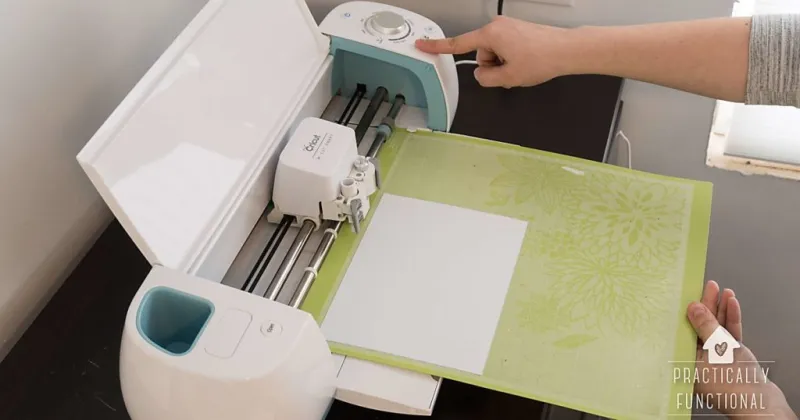
Photo: Cricut machine cutting different craft materials on mat with blades, via heatbusiness.com
Let's be real — there's nothing more frustrating than loading a beautiful sheet of material onto your mat, hitting "Make It," and watching your blade chew through it like a lawnmower hitting a garden hose. We've all been there. Whether you're new to the Cricut world or you've been crafting for years, material compatibility is one of those topics that never fully gets old because the machines keep evolving and so do the materials available at your local craft store.
This guide is your cheat sheet. We tested, we researched, we talked to makers who've run thousands of cuts — and we're laying it all out so you don't waste another sheet of specialty vinyl or, worse, another blade.
First, Know Your Machine
Before we even talk materials, you need to understand what machine you're working with because that changes everything.
Cricut Joy is the compact little powerhouse designed for quick, smaller projects. It handles everyday materials like Smart Iron-On, Smart Vinyl, and cardstock beautifully — but don't push it. It's not built for thick leather, balsa wood, or anything that needs serious pressure.
Cricut Explore 3 steps things up considerably. It cuts over 100 materials and handles everything from paper and vinyl to thin leather and craft foam. If you're running a small business or doing mid-volume projects, this machine covers most of what you'll need.
Cricut Maker 3 is the heavy hitter. With its Adaptive Tool System and up to 4,000 grams of cutting force, it can handle fabric, thick leather, matboard, balsa wood, and even some light metal sheets. If you're doing apparel, home décor, or mixed-media projects, this is where you want to be.
The Blade Breakdown
Your blade choice matters just as much as your machine. Using the wrong blade is like trying to cut steak with a butter knife — technically possible, but ugly.
Fine Point Blade (Premium): Your everyday workhorse. Great for vinyl, iron-on, paper, cardstock, and thin foam sheets. This is the blade that ships with most machines and handles 80% of typical projects without complaint.
Deep Point Blade: Built for thicker, denser materials. Think chipboard, thick cardstock, foam sheets, and stiffened fabric. The steeper blade angle (60 degrees vs. the standard 45) lets it sink deeper into stubborn materials without tearing.
Bonded Fabric Blade: Specifically designed for fabrics that have been backed with iron-on stabilizer. Using a regular blade on fabric tends to drag and fray — this one is engineered to glide cleanly through woven materials.
Knife Blade (Maker only): This is where things get exciting. The Knife Blade is what lets Maker users cut balsa wood up to 3/32", thick leather, and even craft metal sheets. It requires multiple passes and a StrongGrip mat, but the results are genuinely impressive.
Rotary Blade (Maker only): The game-changer for sewers and apparel makers. The rolling action cuts fabric without a stabilizer backing, which means you can cut felt, denim, silk, and everything in between with clean, precise edges.
Material Compatibility at a Glance
Here's the honest breakdown of common materials and how they play with each machine:
| Material | Joy | Explore 3 | Maker 3 | Best Blade |
|---|---|---|---|---|
| Adhesive Vinyl | ✅ | ✅ | ✅ | Fine Point |
| Iron-On/HTV | ✅ | ✅ | ✅ | Fine Point |
| Cardstock (65lb) | ✅ | ✅ | ✅ | Fine Point |
| Glitter Cardstock | ❌ | ✅ | ✅ | Fine Point |
| Thin Leather | ❌ | ✅ | ✅ | Deep Point |
| Thick Leather (2mm+) | ❌ | ❌ | ✅ | Knife Blade |
| Fabric (unbacked) | ❌ | ❌ | ✅ | Rotary Blade |
| Fabric (bonded) | ❌ | ✅ | ✅ | Bonded Fabric |
| Balsa Wood | ❌ | ❌ | ✅ | Knife Blade |
| Chipboard | ❌ | ✅ | ✅ | Deep Point |
| Acetate/Transparency | ❌ | ✅ | ✅ | Fine Point |
| Craft Foam | ✅ | ✅ | ✅ | Fine Point |
The Myths That Need to Die
Myth #1: "You can cut anything if you just run enough passes." Nope. Running 10 passes on a material that isn't compatible doesn't make it work — it makes a mess. Multiple passes are for thick compatible materials, not for forcing incompatible ones.
Myth #2: "All vinyl is the same." Permanent vinyl, removable vinyl, outdoor vinyl, glitter vinyl — they all have different thicknesses and adhesive properties. A setting that works perfectly for standard Oracal 651 might destroy a specialty holographic sheet.
Myth #3: "The Explore can cut balsa wood with enough pressure." It genuinely cannot. The Explore lacks the Adaptive Tool System that makes Knife Blade cuts possible. Trying to force this will damage your machine and ruin your material.
The Unexpected Materials That Actually Work Beautifully
Here's where it gets fun. Beyond the obvious stuff, makers have discovered some surprising materials that cut surprisingly well:
- Cork sheets: Thin craft cork (under 1mm) cuts cleanly on the Maker with a Fine Point blade. It's gorgeous for coasters, tags, and earrings.
- Faux suede paper: This stuff looks and feels like suede but cuts like cardstock. Perfect for gift boxes and packaging.
- Kraft paper bags: Flatten them out and you've got a free, rustic material for gift tags and wrapping accents.
- Window cling material: Cuts beautifully and repositions without adhesive — great for seasonal window décor.
- Printable magnetic sheets: Yes, you can print on them with your inkjet, then cut custom magnets with your Cricut. The Fine Point blade handles it well on Explore or Maker.
Quick Cost-Per-Project Reality Check
One thing makers often overlook is how material costs affect project profitability. Here's a rough breakdown to keep in mind:
- Standard adhesive vinyl (12x12 sheet): ~$0.50–$1.00 per sheet. A typical tumbler decal uses about 1/4 sheet, putting your material cost under $0.25.
- Premium HTV (12x15): ~$2.00–$4.00 per sheet. A full front shirt design might use half a sheet, so budget $1–$2 for material alone.
- Genuine leather (12x12): ~$4.00–$8.00. Earrings can often yield 20+ pairs per sheet, dropping your per-unit cost significantly.
- Balsa wood (12x24 sheet): ~$3.00–$5.00. Great for layered ornaments or signage elements, especially when you can nest multiple designs per sheet.
Pro Tips Before You Load That Mat
- Always do a test cut. Especially with new or unfamiliar materials. Use a small, simple shape and check the cut before committing your full sheet.
- Replace blades more often than you think. A dull blade causes more material damage and failed cuts than almost anything else. If you're cutting regularly, swap blades every 3–6 months.
- Match your mat to your material. LightGrip for delicate paper, StandardGrip for vinyl and cardstock, StrongGrip for thick materials. Using the wrong mat causes slipping, tearing, and uneven cuts.
- Keep a cut log. Seriously — jot down your settings for each new material. You'll thank yourself the third time you try to remember whether that specialty glitter vinyl needed 2 passes or 3.
Your Cricut is capable of way more than most people realize — but only when you work with it, not against it. Knowing your materials isn't just about avoiding wasted supplies. It's about unlocking what your machine can actually do at its best.